There are five Workplace AI quick functions available. They are accessible as buttons or via keyboard commands:
Screenshot (
ctrl+alt+s) - Takes a screenshot of your current screen and describes it. Note: The Be My Eyes Workplace app will hide itself before taking the screenshot.PDF (
ctrl+alt+p) - Select a PDF from your files and Workplace AI will summarize it and enable you to prompt with follow-up questions.Image (
ctrl+alt+i) - Upload an image from your files and Workplace AI will describe it. Supported image types:.png,.jpg,.gifClipboard (
ctrl+alt+c) - Workplace AI will describe the current image in your clipboard.Take picture (
ctrl+alt+w) - Will take a picture with your webcam and describe it. If you are logged into the same Be My Eyes account on your mobile device, you may also select your phone camera as a source.
Example: Describe an image
- Select "Image (ctrl+alt+f)"
2. Select an image from your files
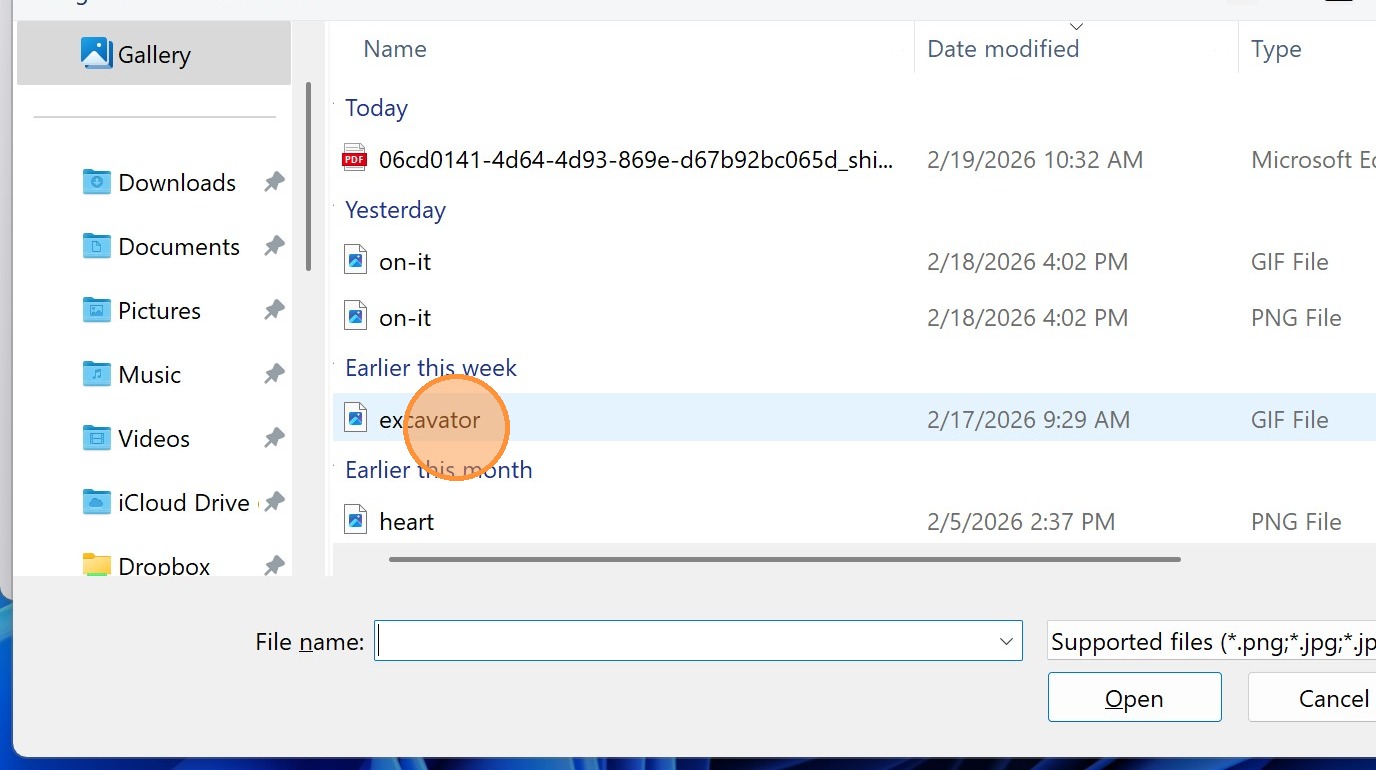
3. Workplace AI will describe the image in text and voiceover. Follow up with additional images or prompts.
4. Save this conversation in your history by selecting "Keep"
5. Share this conversation with others by selecting "Share."
6. Select "Get sharing link" when prompted
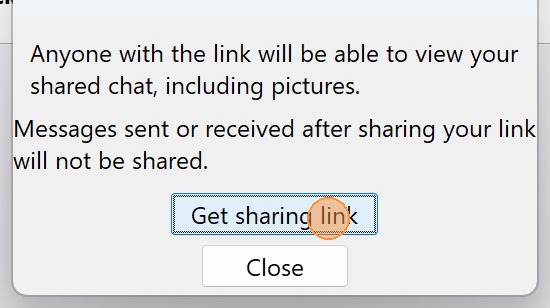
7. Select "Copy" to copy the sharing link.
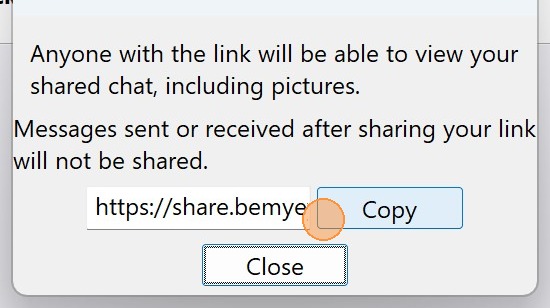
8. Select "Close" to exit the share dialog
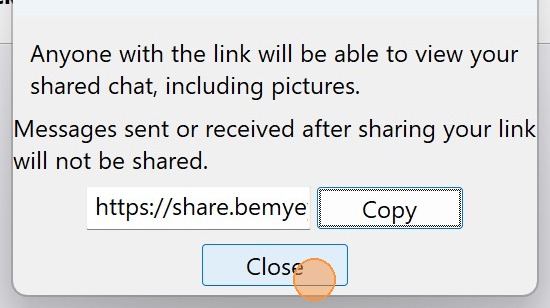
9. Leave the conversation by selecting "Back"